Hi Everyone, today we will learn about creating a dialog field which will be visible based on the checkbox checked or the dropdown value selected. First we will discuss in detail about creating a show/hide dialog field based on dropdown value selected.
Based on Dropdown value
To achieve this functionality, we will be using the inbuilt dropdownshowhide library provided by AEM. It is present at the path “/libs/cq/gui/components/authoring/dialog/dropdownshowhide/clientlibs/dropdownshowhide/js/dropdownshowhide.js“.
- Create a dialog and add a node with any name. For ex : dropdown
- Add the sling:resourceType property with the value “granite/ui/components/coral/foundation/form/select“.
- Add the property granite:class with the value “cq-dialog-dropdown-showhide“.
(see the images for better understanding )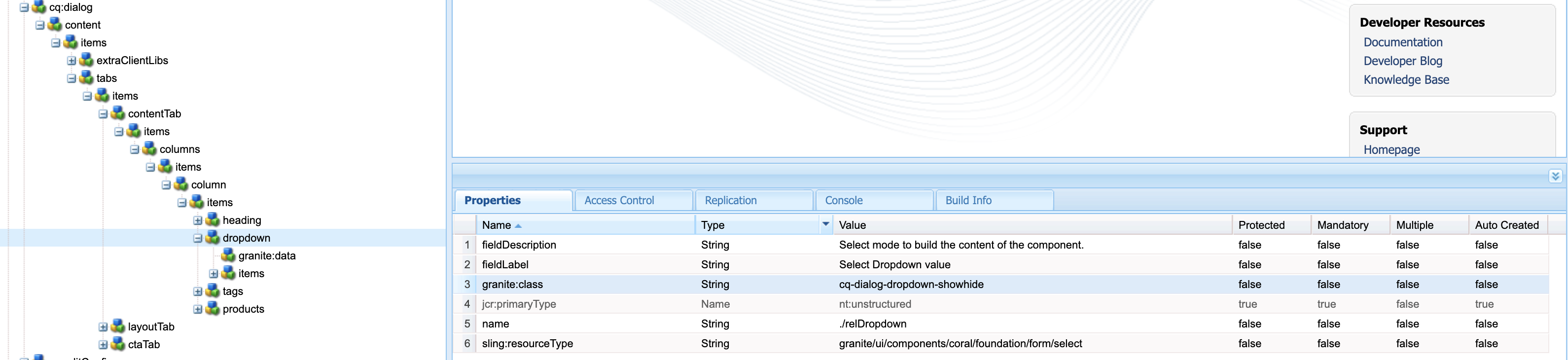
- Now create a node under dropdown node with the name granite:data
- Now on this node, add the property cq-dialog-dropdown-showhide-target with the
value “.showhidetargets“. Remember you can give any value for this property.

6. After this, add a node with sling:resourceType with value “granite/ui/components/coral/foundation/container“.
7. Under this node add the node which will be mapped with the dropdown values. It will be any normal node with any type like, textfield, multifield etc. As shown in image below.
8. Now under the container node, create one more node with the name granite:data. This node will have a property of “showhidetargetvalue” this name, with the value(value could be anything that you will provide). Internally, it is doing the mapping of the dropdown values with these nodes.
8. Similarly, create other nodes that you will be showing in dropdown.
9. In the next image, you can see i have created another node under which i am creating my multifield node.
10. The only change in this would be the value of the “showhidetargetvalue” on the granite:data node.
11.The only step left is to map these granite:data values with the dropdown node. So, we will create an items node, under which we create the nodes with values which will be shown in the dropdown.
(this image shows the tags node, text value will be shown in the dropdown and the value is the value which will map it with the target node.)
(this image shows the value of the products type.)
Thanks…..in the next article we will discuss the selection through checkbox.
 AEM-Lessons